A sketch that compiles is a sketch the compiler was able to parse. That is the entire claim. It means your semicolons landed in legal places and every function you called actually exists somewhere. It says nothing whatsoever about whether the code you wrote is the code you meant. So when the IDE reports success, the board goes quiet, and absolutely nothing happens on the breadboard, you have not hit a mysterious hardware gremlin. You have hit the gap between valid C++ and correct C++.
The good news: “compiles but does nothing” has a short list of usual suspects, and they each fail in a distinctive way. Work through them in order and you will normally find the problem in ten minutes. Guess randomly and you can lose an entire evening to a missing one-line call.
Step zero: did the sketch actually get onto the board?
Verify (the checkmark) compiles your code. Upload (the right-arrow) compiles it and then flashes it to the board. They are two different buttons, and it is embarrassingly easy to keep pressing the first one while wondering why your edits have no effect. Watch for “Done uploading” in the status bar rather than “Done compiling,” and watch the TX/RX LEDs flicker during the transfer — that flicker is the only visual proof bytes moved.
It is also possible the upload landed somewhere unhelpful. If Tools → Board says Arduino Uno while a Nano is actually plugged in, the transfer can still succeed and then run code built for a different pin map. And if the port dropdown is empty or greyed out, you have a driver or cable problem rather than a code problem — Arduino not detected by your computer and Arduino IDE won’t upload cover those separately.
Step one: prove loop() is running at all
Before debugging your logic, establish that your logic is being executed. The cheapest way is a heartbeat — a counter printed to the Serial Monitor on every pass through the loop:
void setup() {
  Serial.begin(9600);
}

void loop() {
  static unsigned long n = 0;
  Serial.print(F("loop "));
  Serial.println(n++);
  delay(500);
}
Open the Serial Monitor. Three possible outcomes, three different diagnoses. Numbers climbing: loop() is running fine, so your bug is in what the code does, not whether it runs. Nothing at all: either you forgot Serial.begin() in setup(), or the monitor is attached to a different port. Garbage characters — stray boxes, ÿ, þ — means a baud rate mismatch: the dropdown in the Serial Monitor does not match the number inside your Serial.begin() call. Those two numbers have to be identical, every single time.
The pinMode() trap
This one accounts for more silent sketches than everything else on this list combined. Every digital pin on an ATmega328P comes out of reset configured as an input — the data direction register starts zeroed. If you never call pinMode(pin, OUTPUT), then digitalWrite(pin, HIGH) does not drive that pin to 5 V. It switches on the chip’s internal pull-up resistor instead, which the ATmega328P datasheet specifies as somewhere between 20 kΩ and 50 kΩ. Through that much resistance an LED receives a few tens of microamps: a faint glow in a dark room, and nothing you would ever notice in daylight.
Nothing here is wrong in a way a compiler can detect. The pin is not broken and the sketch is not crashed — the pin is simply being weakly pulled up instead of driven. One line in setup() fixes it. The mirror-image version of this bug is just as common: calling pinMode(pin, INPUT) on a pin you later try to drive, which quietly undoes the output configuration. If the difference between those two modes is still fuzzy, our guide to digital and analog pins is the background reading.
This post contains affiliate links. If you buy through them, this site earns a commission at no extra cost to you.
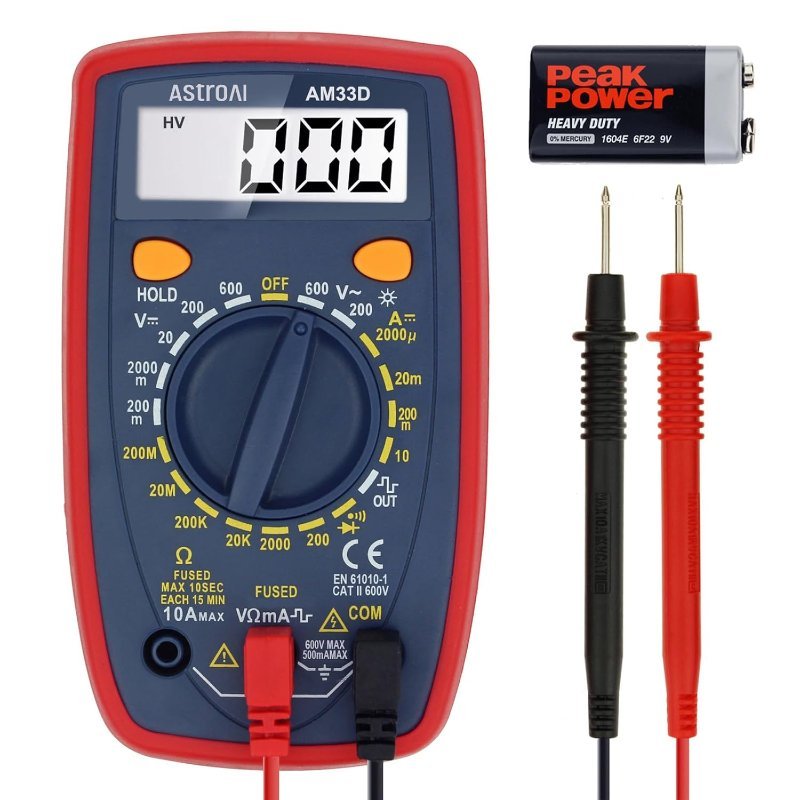
What makes this failure mode so sticky is that you cannot see the difference between “driven HIGH” and “pulled up through 30 kΩ” by staring at the board. You have to measure it. A cheap meter with the black probe on GND and the red probe on the pin settles the question in two seconds: a real output sits at roughly 5.0 V and holds there under load, while a pulled-up pin collapses the instant anything draws current from it. This is the single highest-value $15 you can spend on debugging, and a basic 2000-count model does this job as well as anything fancier.
Manual-ranging, continuity beeper, DC volts down to millivolts — everything you need to tell a driven pin from a floating one. It is not a bench-grade instrument and does not need to be; for 5 V logic work the limiting factor is your probe hand, not the meter. If you want the longer comparison, see our multimeter roundup.
Check Price on Amazon →digitalWrite(8, HIGH) with no pinMode() line at all. Put your meter across the LED — a fraction of a volt, no light. Now add pinMode(8, OUTPUT); to setup() and measure again: about 1.8 V and a bright LED, from the same circuit and one added line. A LED and resistor assortment kit gives you a few hundred of each for pocket change, which makes experiments like this free to repeat.
An = where you meant ==
In C++ a single = assigns, and the expression as a whole evaluates to the value that was assigned. So if (buttonState = HIGH) does not ask whether the button is pressed. It sets buttonState to HIGH and then evaluates HIGH, which is 1, which is always true. That branch fires on every pass forever. Reverse the constant and you get the opposite disaster: while (running = false) never executes its body even once.
None of that is a syntax error, so it compiles clean on default settings. Make it visible: File → Preferences → Compiler warnings → All. GCC will then start reporting suggest parentheses around assignment used as truth value, which is precisely this bug, by name, with a line number. Turning warnings up is a one-time change that pays for itself the first week.
Integer math that silently rounds to zero
Two closely related traps, both stemming from the fact that int on an AVR board is 16 bits wide — a range of −32,768 to 32,767, not the 32-bit int you would get writing the same code on a desktop.
Overflow. millis() returns a 32-bit unsigned long. Store it in an int and your timer wraps around after roughly 32 seconds. Timing logic that behaves beautifully for half a minute and then goes berserk is almost always this exact mistake. Anything holding a millis() value, or a difference between two of them, needs to be unsigned long.
Truncation. Integer division discards the remainder immediately, before anything else in the expression happens. int pct = (reading / 1023) * 100; evaluates to zero for every reading below 1023, because reading / 1023 rounds down to 0 first and 0 × 100 is still 0. Fix it by promoting one operand to floating point (reading / 1023.0 * 100) or by reordering so the multiply happens first (reading * 100L / 1023). Our post on Arduino programming basics walks through variable types in more depth.
Code sitting in the wrong function
setup() runs once, in the first few milliseconds after reset. loop() runs forever. Put your blink inside setup() and it genuinely does happen — once, faster than human reaction time, probably before you have finished switching windows. The inverse also bites: a while (true) block inside setup() means loop() never gets a turn, which seems harmless right up until you add something to loop() and cannot work out why it is being ignored.
Blocking calls that look exactly like a dead board
while (!Serial); is a real idiom — it waits for the USB serial connection to come up before continuing. On a classic Uno or Nano it does nothing at all, because the ATmega328P speaks to a separate USB-to-serial chip and Serial is always true there. On native-USB boards — Leonardo, Micro, Uno R4, ESP32-S3 — that same line halts the sketch indefinitely until you open a serial monitor. A board that appears dead and then springs to life the instant you open the Serial Monitor is this line, not a fault.
Long delay() calls cause a smaller version of the same thing: nothing else in your sketch moves while a delay is running, button reads included. A button that only registers when you hold it down is usually a loop blocked by delay() rather than a bad button.
Quietly running out of RAM
The Uno gives you 2,048 bytes of SRAM for every variable your sketch holds, and nothing warns you when you are about to exceed that at runtime. The classic culprit is the String class: each concatenation allocates a fresh block on the heap and abandons the old one, and with no garbage collector on AVR the heap fragments until it collides with the stack. The symptom is a sketch that runs for a while and then reboots, locks up, or starts printing nonsense — never a compile error.
The fix is fixed-size char arrays with snprintf() in place of String, plus the F() macro around every string literal you print. Serial.println(F("ready")) keeps that text in flash memory instead of copying it into RAM at startup, and on a chatty sketch that alone can free hundreds of bytes.
When the code is right and the signal is wrong
A multimeter answers one question: what voltage is this pin at right now. A good number of bugs do not live in steady state. PWM — pulse-width modulation, where the chip switches a pin fully on and fully off thousands of times per second and the ratio between on-time and off-time stands in for an analog level — reads as a meaningless average on a meter. The same goes for an I2C clock line, a UART byte, or a 10-microsecond trigger pulse to an ultrasonic sensor. To debug those you need to see the signal plotted over time, and the cheap way to do that is an 8-channel USB logic analyzer feeding the free, open-source PulseView software.
This is the tool that converts “my servo twitches” into “my pulse is 1.2 ms when the library should be sending 1.5 ms,” and “the sensor returns zero” into “the clock line never moves, so the device is not being addressed.” At 24 MHz sampling it is far too slow for analog work or fast buses, but for 5 V Arduino logic it is more than enough, and it costs about what a decent set of jumper wires does. One caution worth knowing: these are 5 V-tolerant but not isolated, so mind your logic levels when probing a 3.3 V board.
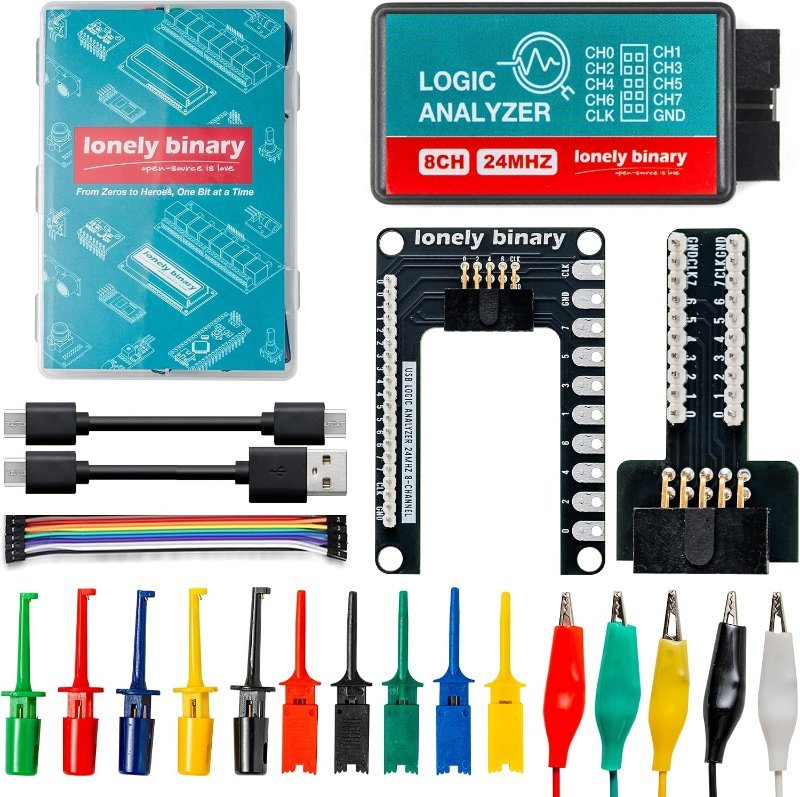
Eight channels, sigrok/PulseView compatible, and — the part that matters in practice — it ships with a breadboard breakout board, test hooks and alligator clips, so you are not improvising probe connections on day one. Decodes UART, I2C and SPI directly in software.
Check Price on Amazon →The order that actually saves time
- Confirm it uploaded — “Done uploading,” plus TX/RX flicker.
- Confirm
loop()runs, using the heartbeat counter above. - Confirm
Serial.begin()exists and its baud matches the monitor dropdown. - Confirm every pin you drive has a
pinMode(..., OUTPUT)insetup(). - Measure the pin. Driven or floating — stop guessing and read the number.
- Re-read every
iffor=versus==, and everyintholding a large or time-based value. - Only now start suspecting the wiring — and when you do, this breadboard checklist is the next stop.
Compiling cleanly feels like progress because the IDE rewards it with a green message, and that is a slightly misleading piece of feedback. The compiler is a grammar checker, not a proofreader. Every item on this list is a sentence that parses perfectly and means the wrong thing — which is why the fix is almost never clever, and almost always one line you assumed was already there.