Most Arduino tutorials hand you a sketch, tell you to click Upload, and move on. That works right up until you want to change something. Then you are staring at a wall of words — int, void, for, curly braces everywhere — with no idea which parts matter and which are ceremony.
Here is the thing worth knowing up front: an Arduino sketch is just C++ with a couple of conveniences bolted on. Nothing about it is Arduino-specific magic. Once you understand three ideas — variables, loops, and functions — you can read essentially any beginner sketch on the internet and modify it on purpose instead of by trial and error.
The two functions every sketch must have
Open a blank sketch and you get setup() and loop(). Those are not optional and they are not decoration. When the board powers up, it runs everything inside setup() exactly once — that is where you configure pins, start serial communication, initialize a sensor. Then it runs loop() over and over, forever, as fast as it can, until you cut power.
There is no “end” to an Arduino program. That is a real conceptual shift if you have written scripts on a computer before. Your code does not finish; it just keeps cycling. A bare loop() with nothing in it still runs millions of times per second on a 16 MHz board — it is simply doing nothing very quickly.
Variables: named boxes, and their size matters more than you think
A variable is a labeled slot in memory that holds a value you can read and change. int ledPin = 13; reserves a slot, names it ledPin, and puts 13 in it. From then on you write ledPin instead of remembering which pin you picked, and changing the wiring means editing one line rather than six.
The word in front — int, float, bool — is the type, and on an Arduino it is not a formality. A classic Uno runs an ATmega328P with 2 KB of SRAM. Two kilobytes. That is the entire working memory for every variable your sketch holds at once, so the type you choose is a real budget decision:
bool— 1 byte, holdstrueorfalse. Use it for on/off state.byte— 1 byte, 0 to 255. Perfect for a PWM brightness value or a small counter.int— 2 bytes on AVR boards like the Uno and Nano, holding −32,768 to 32,767. Note that on 32-bit boards (the Uno R4, Due, or an ESP32) anintis 4 bytes instead. Code that quietly assumed 16 bits behaves differently across boards.unsigned long— 4 bytes, 0 to 4,294,967,295. This is whatmillis()returns, which is why timing variables should always be declared this way.float— 4 bytes, roughly 6–7 significant digits. The AVR chip has no hardware floating-point unit, so every float operation is emulated in software and is dramatically slower than integer math. Use floats when you need them, not by default.
Where you declare a variable matters too. Declare it above setup() and it is global — every function can see it, and it survives from one pass through loop() to the next. Declare it inside a function and it is local: it is created fresh each time that function runs and vanishes when the function exits. That trips people up constantly. If your counter keeps resetting to zero, it is almost always declared inside loop() when it should be global.
For values that never change, use const int ledPin = 13;. The compiler can often fold a const straight into the machine code and spend no SRAM on it at all — free, and it stops you from accidentally reassigning a pin number halfway down the sketch.
Loops: the ones you write, inside the one you are already in
You already have an infinite loop — loop() itself. The loops you write inside it are for repeating something a bounded number of times before the next pass.
A for loop packs three things into one line: where to start, when to stop, and how to step. for (int i = 0; i < 10; i++) reads as “make a counter called i starting at 0, keep going while i is under 10, add one each time round.” The body runs ten times, with i holding 0 through 9. Ten iterations ending at nine — that off-by-one is the single most common beginner bug in C-family languages, and it is worth internalizing now.
A while loop drops the counter and just repeats while a condition holds: while (digitalRead(2) == LOW) { } sits there until a button releases. Be careful with those — a while loop that never becomes false hangs your sketch completely, and since the board has no operating system, there is nothing to rescue you but the reset button.
Which leads to the loop-adjacent habit worth building early: delay(1000) does not schedule anything. It halts the processor for a full second, during which nothing else in your sketch can happen — no button gets read, no sensor gets sampled. The grown-up approach is to record millis() into an unsigned long and compare it against a stored timestamp each pass through loop(), acting only when enough time has elapsed. It is more lines of code and it lets your sketch do more than one thing at once.
Functions: naming a chunk of behavior
A function is a named block of code you can run by calling its name. You have been calling them all along — digitalWrite(), analogRead(), Serial.println() are all functions somebody else wrote. Writing your own is the same move.
The shape is: return type, name, parentheses with any inputs, then a body in braces. void blinkTwice() { ... } defines a function that takes nothing and gives nothing back — that is what void means. int readTemp() { ... return value; } defines one that hands an integer back to whoever called it. Inputs go in the parentheses: void blink(int pin, int times) lets you call blink(13, 3) and reuse the same logic on any pin.
The payoff is not shorter code, it is readable code. A loop() that reads readSensor(); updateDisplay(); checkButton(); tells you what the machine does at a glance. The same behavior inlined as forty lines of digitalWrite calls tells you nothing until you have read all forty. Since a sketch you understand is a sketch you can debug, this pays for itself the first time something breaks.
All three, in one small sketch
Put them together and the pieces stop feeling abstract. A global const int for the pin. A global int counter that survives between passes. A for loop to blink a set number of times. A custom function so loop() stays legible:
const int ledPin = 13;
int cycles = 0;

void setup() {
  pinMode(ledPin, OUTPUT);
  Serial.begin(9600);
}

void blink(int pin, int times) {
  for (int i = 0; i < times; i++) {
    digitalWrite(pin, HIGH);
    delay(200);
    digitalWrite(pin, LOW);
    delay(200);
  }
}

void loop() {
  cycles++;
  blink(ledPin, 3);
  Serial.print("Cycle: ");
  Serial.println(cycles);
  delay(1000);
}
Twenty-odd lines, and every concept in this article is in there. cycles is global, so it climbs instead of resetting. blink() takes parameters, so it works on any pin. The for loop runs a bounded number of times inside the unbounded loop(). Open the Serial Monitor at 9600 baud and you can watch the counter climb — that is your program reporting on its own state, which is the entire basis of debugging embedded code.
What to actually run this on
This post contains affiliate links. If you buy through them, this site earns a commission at no extra cost to you.
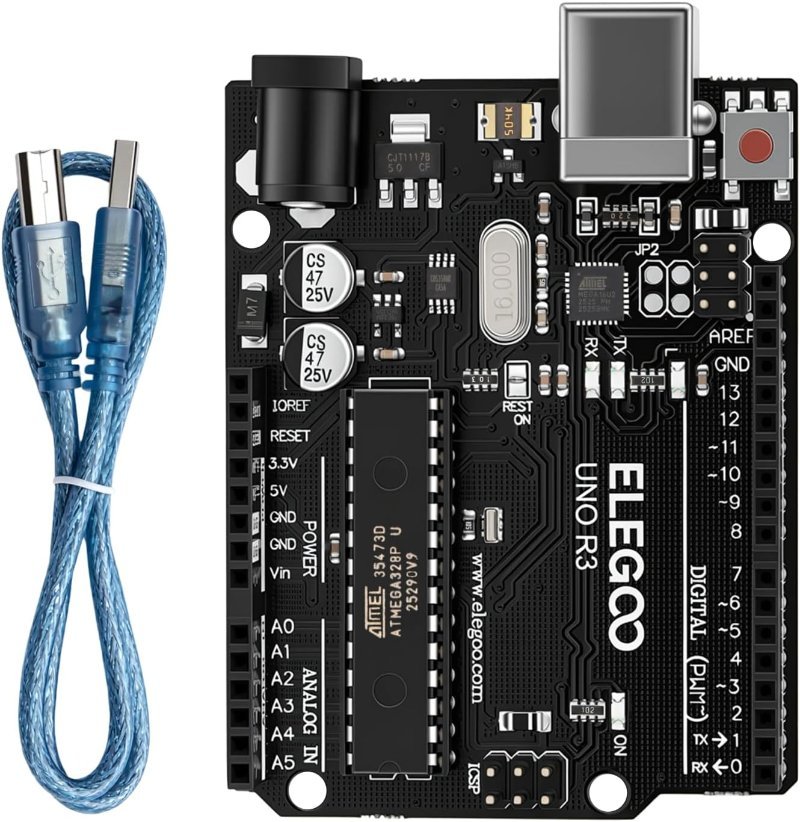
You can compile all of this without hardware, but you will not learn much watching a compiler succeed. Get a board. For learning the language specifically, the classic Uno R3 form factor is still the right call — not because it is the most capable board you can buy, but because every tutorial, forum post, and pinout diagram from the last decade assumes it. ELEGOO’s clone runs the same ATmega328P with the same ATmega16U2 USB chip as the official board, so it enumerates properly over USB without the driver headaches cheaper CH340-based clones bring, and it costs a fraction of the genuine article. The onboard LED on pin 13 means the sketch above runs with zero wiring.
Same chip, same USB bridge, and the same pinout as an official Uno, for a good deal less. The 16U2 USB chip matters — it is why this board shows up as a proper serial device instead of needing a driver hunt. Onboard LED on pin 13, so you can run your first sketch before you own a single jumper wire.
Check Price on Amazon →Serial.print() lines with lcd.setCursor(0, 0); and lcd.print(cycles);. Four wires, and your variable stops being an abstraction on a screen and becomes a number glowing on your desk. It also quietly teaches you I2C, since that display talks over two shared pins instead of eating up a dozen digital ones.
Where to go next
Once the three ideas here are comfortable, the next thing that will bite you is not syntax — it is electricity. Reading a sensor means knowing what voltage its pins expect, and mixing a 5V Uno with a 3.3V sensor is how boards die. Our guide to 5V vs. 3.3V logic levels covers that, and digital vs. analog pins explains which pin to reach for when. Learn the language first, then learn what the pins are physically doing. Both halves are required.