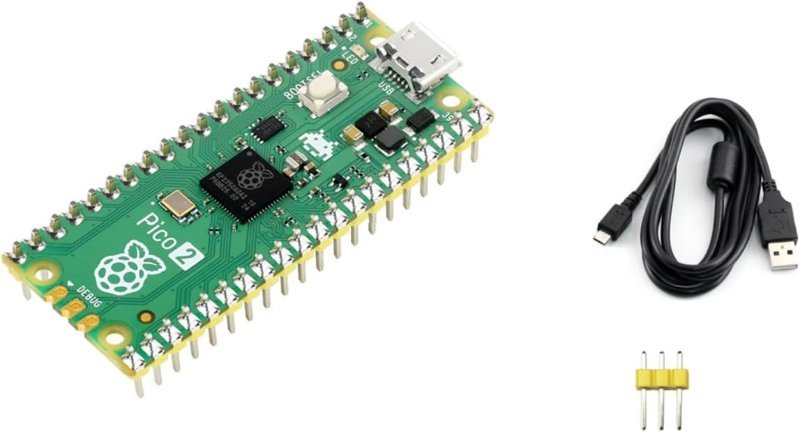
The Raspberry Pi Pico 2 is a faster, roomier, cheaper microcontroller than the Arduino Uno, and it is still the wrong first board for most beginners. Both halves of that sentence are true, and if you only take one thing from this review, take that one.
I say this as someone who keeps Picos in a drawer and reaches for them constantly. They are excellent. But “excellent chip” and “excellent board to learn on” are different questions, and most Pico-vs-Arduino comparisons only answer the first one.
What you actually get on the board
The Pico 2 runs Raspberry Pi’s own RP2350 chip, and the spec sheet is close to absurd for the money. Two Arm Cortex-M33 cores clocked up to 150 MHz, 520 KB of on-chip SRAM, and 4 MB of onboard flash. It also ships with two extra RISC-V cores (Hazard3) on the same die — you pick which pair boots, Arm or RISC-V, which is a genuinely strange and delightful thing to find on a board this cheap.
Compare that to an Arduino Uno R3: one 8-bit AVR core at 16 MHz, 2 KB of SRAM, 32 KB of flash. Even the newer Uno R4 — 48 MHz, 32 KB SRAM, 256 KB flash — is not in the same weight class. The Pico 2 has roughly 16 times the RAM of an R4 and 260 times the RAM of an R3. If you have ever watched an Uno sketch quietly stop working because a string buffer ate the last of your memory, that number lands differently.
On the I/O side you get 26 multi-function GPIO pins, two SPI and two I2C buses, two UARTs, 24 PWM channels, and three 12-bit analog inputs you can actually reach — GP26, GP27, and GP28. PWM, if it is new to you, is pulse-width modulation: the chip switches a pin on and off very fast and varies the ratio, which is how you dim an LED or set a motor’s speed without a real analog output. Twenty-four channels is a lot of independent things to dim or spin.
PIO is the real reason to want one
Every other spec on that list is just “more.” PIO is different in kind, and it is the feature that makes the Pico worth learning even if it is not your first board.
PIO stands for Programmable I/O. The RP2350 has three PIO blocks containing twelve independent little state machines — tiny dedicated processors whose entire job is to wiggle pins on an exact schedule, completely independent of your main program. Each one runs a handful of specialized instructions in a tight loop with cycle-accurate timing.
Why that matters: on an Arduino, protocols the hardware doesn’t natively speak have to be faked in software, and your loop() has to babysit the timing. Miss a few microseconds because an interrupt fired and the data is garbage. On a Pico you hand the protocol to a state machine and forget about it. Addressable LED strips, DVI video, extra UARTs, quadrature encoder decoding, weird sensors with proprietary one-wire protocols — all of it becomes a PIO program running beside your code instead of inside it.
Nothing on the Arduino side has an equivalent. That is the Pico’s actual competitive moat, not the clock speed.
Where the Uno still wins, and it’s not close
The Pico is 3.3 V only, and it is not 5 V tolerant. Feed a Pico GPIO pin 5 V and you are damaging the chip — the absolute maximum is about 3.8 V, and the ADC pins are the most fragile of the bunch. An enormous share of the cheap sensors, relay boards, and character LCDs in hobby kits are 5 V parts that assume you’re driving them from an Uno. On a Pico, some of those need a level shifter or a voltage divider, and figuring out which is which is exactly the kind of homework a beginner does not know they’ve been assigned. If you want the full picture on that, we wrote it up separately in 5V vs. 3.3V logic levels, explained.
The stock Pico ships with bare, unsoldered pads. The official $8 board is a naked PCB with holes where the pins should be. You cannot put it in a breadboard until you solder 40 header pins yourself. That is a fine first soldering project and a terrible first electronics project, and the order matters when you’re trying to get one LED to blink on a Tuesday night.
The tutorial ecosystem is still Arduino’s. Fifteen years of Instructables, forum threads, YouTube walkthroughs, and library documentation assume an Uno. When your circuit doesn’t work — and it won’t, the first several times — the value of being able to search your exact symptom and find forty people who had it in 2014 is hard to overstate. The Pico’s documentation is genuinely good, but “good docs” and “someone has already made your specific mistake in public” are not the same resource.
No shields. The Uno’s header layout is a de facto standard with hundreds of stackable boards built for it. The Pico’s 40-pin layout has nothing comparable.
Which one to buy
If this is your very first microcontroller and you want the shortest path to a working circuit, buy an Uno and come back here in two months. If you already have an Uno, or you’re stubborn, or the project in your head involves LED strips, real-time signal work, or anything that needs more than a few kilobytes of RAM, buy a Pico 2 — with headers already on it.
This post contains affiliate links. If you buy through them, this site earns a commission at no extra cost to you.
The pre-soldered Waveshare version is the one I actually recommend. It is a genuine RP2350 Pico 2 with the headers already attached, it drops straight into a breadboard, and the few dollars over the bare official board buy you an evening you would otherwise spend soldering 40 pins before writing a single line of code. Paying a premium to skip assembly is usually a bad trade in this hobby; here it isn’t.
Full RP2350: dual Cortex-M33 at 150 MHz, 520 KB SRAM, 4 MB flash, 26 GPIO, three PIO blocks. Headers already on, so it goes into a breadboard the minute it arrives.
Check Price on Amazon →rp2.asm_pio, and your main loop stays completely free while the strip animates. Then try the same thing on an Uno and notice how much of your program the LED library now owns.
If your project needs Wi-Fi or Bluetooth, get the Pico 2 W instead. Same RP2350, plus an Infineon CYW43439 radio doing 2.4 GHz Wi-Fi and Bluetooth 5.2 for a few dollars more. This is the comparison where the Uno stops being a contender at all — adding networking to an Uno means a shield or an ESP module and a real jump in cost and wiring. Note that the wireless chip borrows GP29 and a couple of other internal lines, which is why you see three usable ADC channels rather than four.
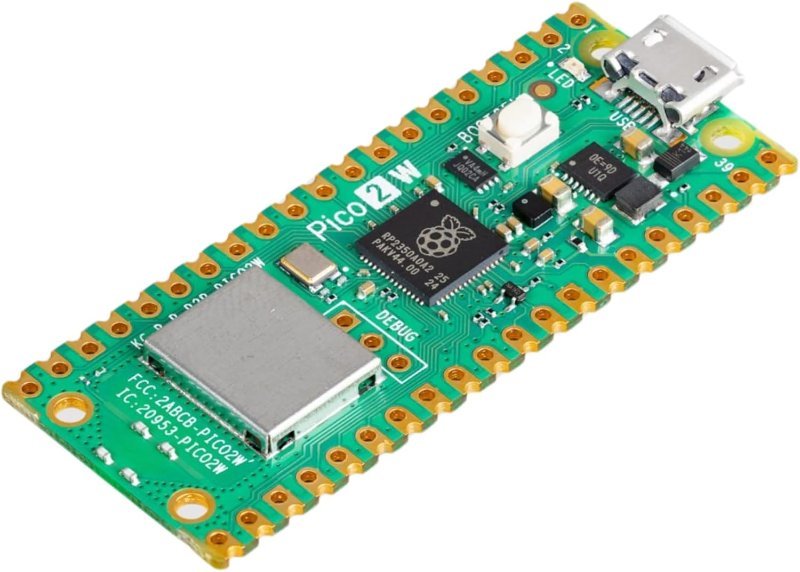
Everything the Pico 2 has plus an onboard CYW43439 radio. For anything that reports to a phone, a dashboard, or a home-automation setup, start here instead.
Check Price on Amazon →The verdict
The Pico 2 wins the spec fight so decisively it is barely a fight. It loses the beginner fight on 3.3 V fragility, unsoldered headers, and fifteen years of Arduino tutorials it can’t borrow from. Those are not chip problems and they will keep shrinking every year.
So: first board ever, Uno. Second board, or first board with a specific demanding project behind it, Pico 2 with headers. And if you already know your project needs to talk to a network, skip straight to the Pico 2 W and don’t look back at the Uno at all.